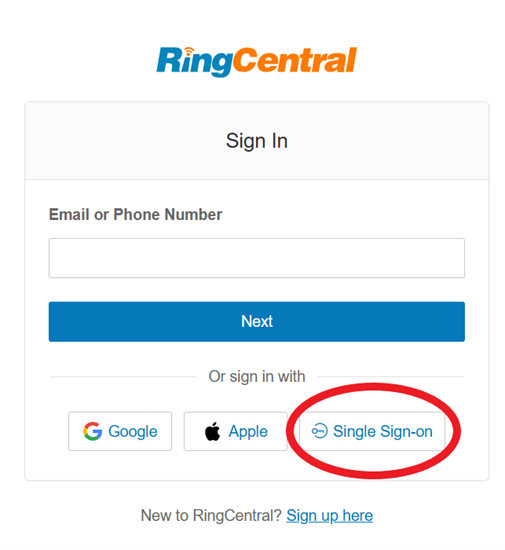
To get started, go to https://service.ringcentral.com/ and click the Single Sign-On option.
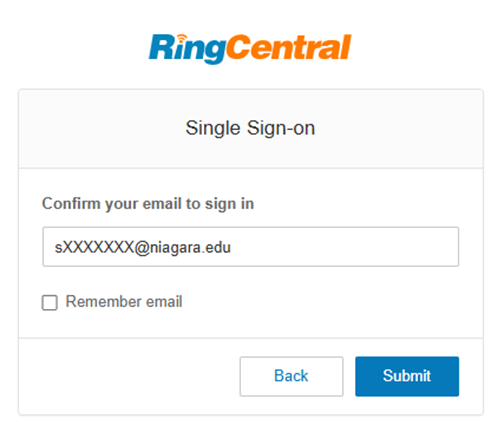
In the Confirm your email to sign in field, sign-in using your Niagara University PurplePass account. Student PurplePass accounts are in the format s0000000@niagara.edu, where 0000000 is your student ID number. It is not your email address, so please do not include "mail."
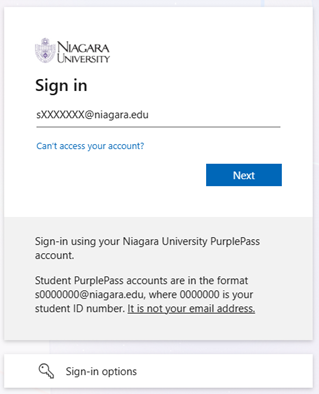
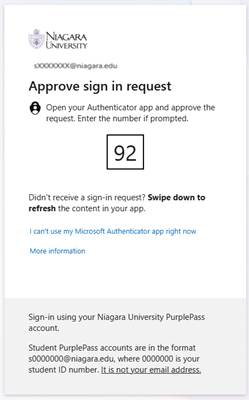
If you have not previously logged in to an NU system on this device, you will be prompted to sign in using NU’s usual Microsoft Single Sign-On page.
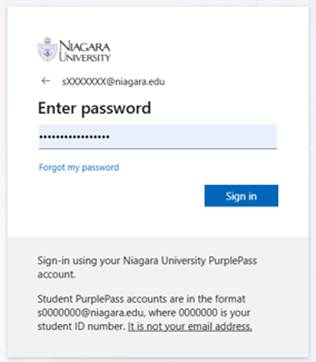
Follow your normal sign-in and authentication steps. If prompted, verify your account using your established multifactor authentication method.
Once logged in, you should be prompted to pick a PIN and security question for your account.
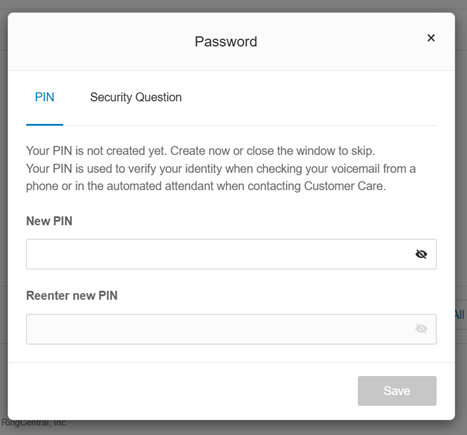
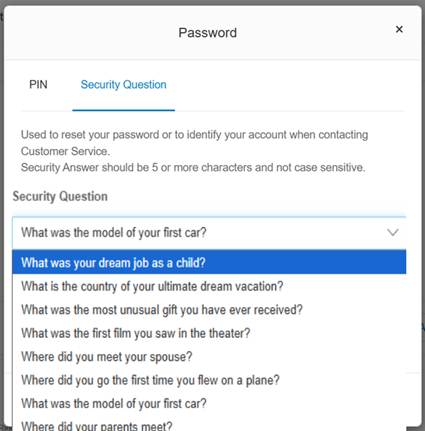
Your PIN must be 6–10 digits long, contain only numbers, and must not include sequential or repeating digits or any information associated with your account.
Select a security question from the dropdown menu and type your answer in the space provided.
Once your PIN and security question is setup, your phone is ready for use.
Was this article helpful?
That’s Great!
Thank you for your feedback
Sorry! We couldn't be helpful
Thank you for your feedback
Feedback sent
We appreciate your effort and will try to fix the article